
3.2 Top Toolbar
3.2.1 One-Click

Currently, One-Click slicing feature only supports two application modes: "Dental Model" and "Temporary Crown".
The One-Click slicing feature can only be activated after models are imported; for other applications or when no model is imported, the icon remains grayed out and inactive.
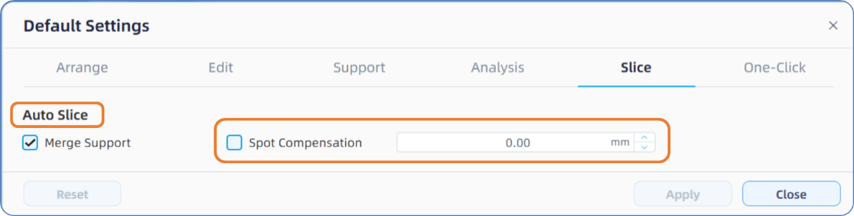
For the Dental Model application, One-Click mainly includes functions such as "Part Inspection (Required)", "Hollowing (Optional)", "Arrange - Optimize Orientation (Optional)", "Arrange - Auto Nesting (Optional)", "Arrange - Dies Scaling (Optional)", "Auto Supports (Optional)", "Auto Slicing - Merge Supports (Optional)", and "Auto Slicing - Pixel Compensation (Optional)", etc.
The active functions can be toggled in "Default Settings - One-Click - Dental Model", and specific function parameters can be configured in sub-functional pages such as "Default Settings - Arrange / Edit / Support / Analysis / Slice".

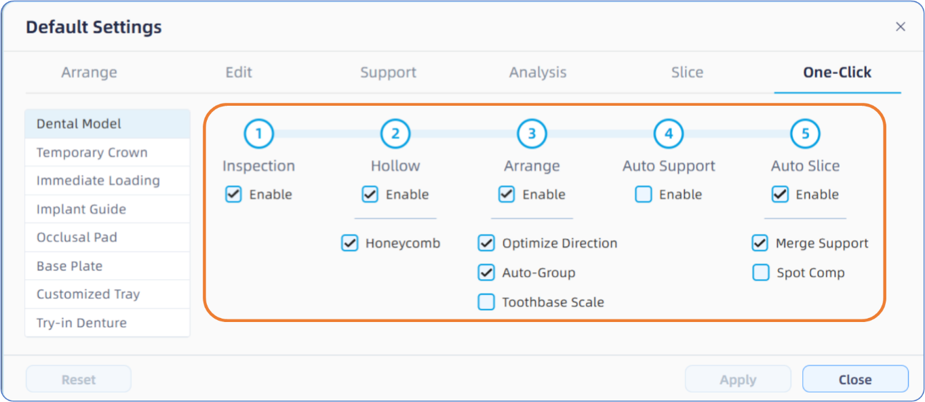
Where,
- Part Inspection primarily includes checks for non-manifold meshes (holes), intersecting facets, and redundant facets; this function is selected by default and cannot be unchecked.
- Hollowing determines whether to apply a hollowing process to the imported dental models, For instance, if the imported model is a solid continuous mesh, checking this option will enable One-Click to automatically perform a series of operations, including shelling, adding honeycomb infill, and generating internal or lateral drainage holes;
- Specific parameters for this feature can be configured in detail on the "Default Settings - Edit - Hollowing" page. Please note: If the imported model has already been hollowed out and has had drainage holes added causing the internal and external surfaces of the file to form a single continuous mesh—the software may generate an error or produce incorrect hollowing results.
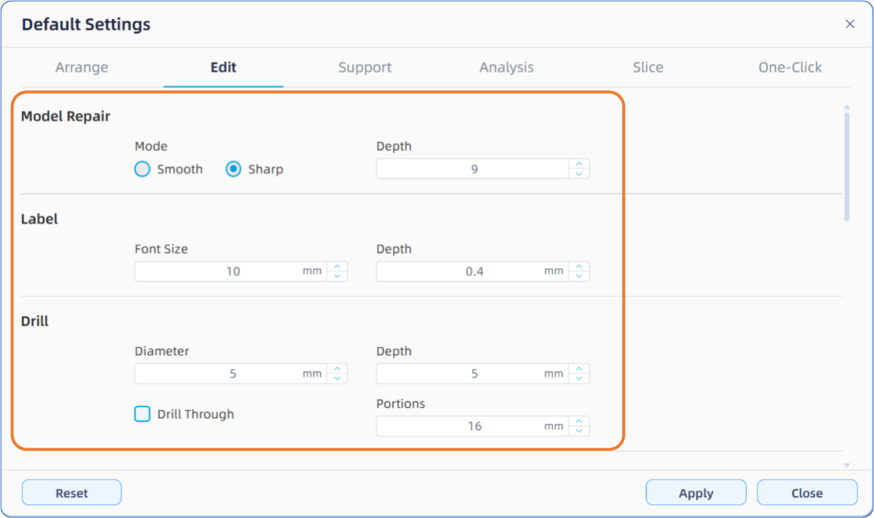
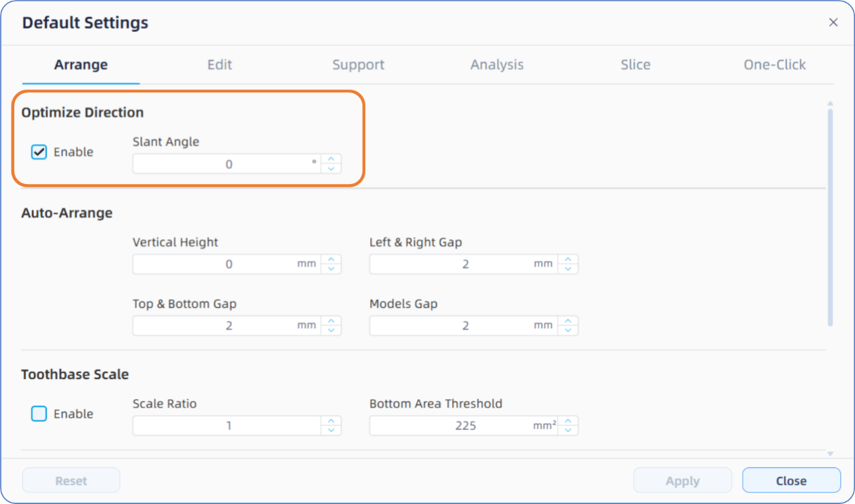
- Arrange: Click here to jump to the detailed content.
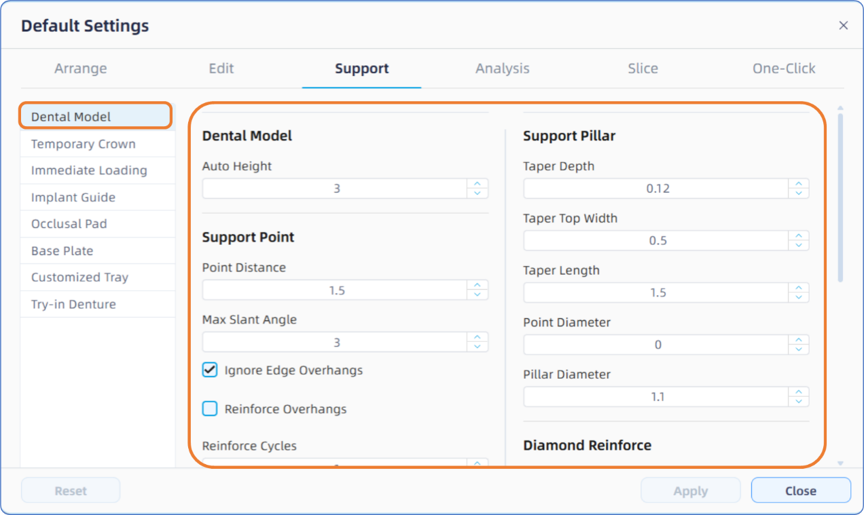
- Support: Click here to jump to the detailed content.
-Slice:Click here to jump to the detailed content.
For the Temporary Crown application, its One-Click function and workflow are basically identical to those of the Dental Model. However, its Hollowing, Auto Nesting, and Abutment Scaling functions do not need to be checked, and the Auto Supports function is required. Users can choose whether to Optimize Orientation based on their needs.